
EveryAnswer
An AI-powered interactive teaching platform for teachers of all subjects and grade levels.
Bring a lesson, ask questions live, see every answer as it arrives, and finish with a report you keep. Made to save teachers time, in any subject and at any grade level.
Classroom pilot — being tested with a real class
What it does
Everything for a live lesson, in one place.
EveryAnswer is built for teachers of all subjects and grade levels, and for the busy days when preparation time runs short.
Bring your PowerPoint
Import the slides you already use. Your original file is kept untouched, and every slide shows up ready to present.
AI-written questions you approve
EveryAnswer prepares multiple-choice and short-answer questions from your own slides in the background. Nothing is added to a lesson until you accept it, and you can always write your own.
Create with AI
Describe what you want to teach and get an editable lesson: slides, questions and teacher notes. Every slide is yours to rewrite, reorder or delete.
Live classroom responses
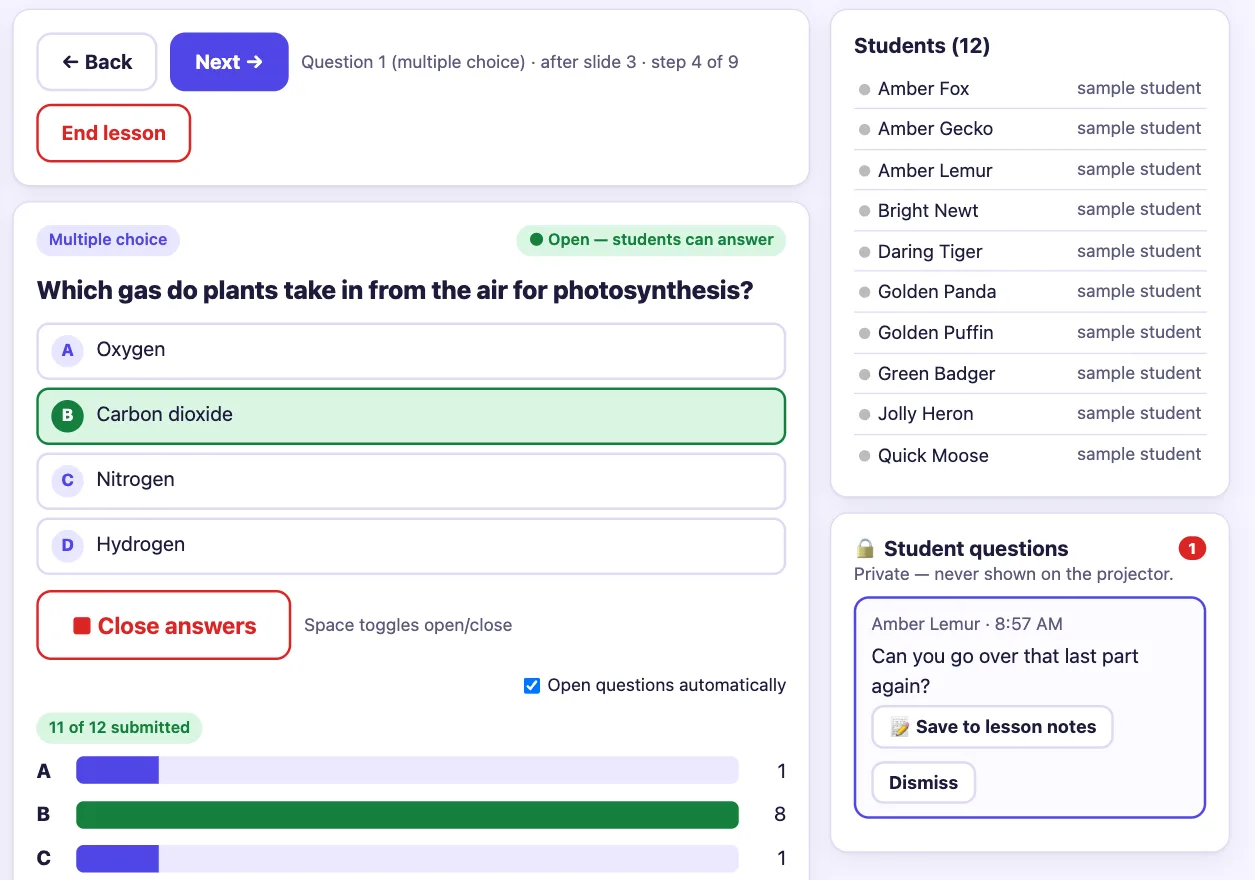
Students join with a class code or QR code on any phone, tablet or computer. You see answers arrive on a private dashboard while the projector stays clean.
Substitute-ready teacher notes
Private notes for each slide say what to say, what to do and what to watch for, so a guest teacher can run the lesson with confidence.
Spreadsheet reports
Export answers, scores, student questions and instructional insights to a spreadsheet you keep. Short-answer scores are suggestions you can change.
How a lesson runs
Four steps, from slides to results.
The teacher stays in charge at every step. AI helps prepare; you decide what students see.
- 1
Start with a lesson
Import a PowerPoint, or describe a topic and let AI draft a lesson for you to edit.
- 2
Review the questions
Accept, edit or replace suggested questions. Add your own any time.
- 3
Teach live
Show the projector view, open a question, and watch responses arrive on your private dashboard.
- 4
Keep the results
Export to your own spreadsheet. Once you confirm the export, the temporary student records are deleted.
In the classroom
What teachers and students see.
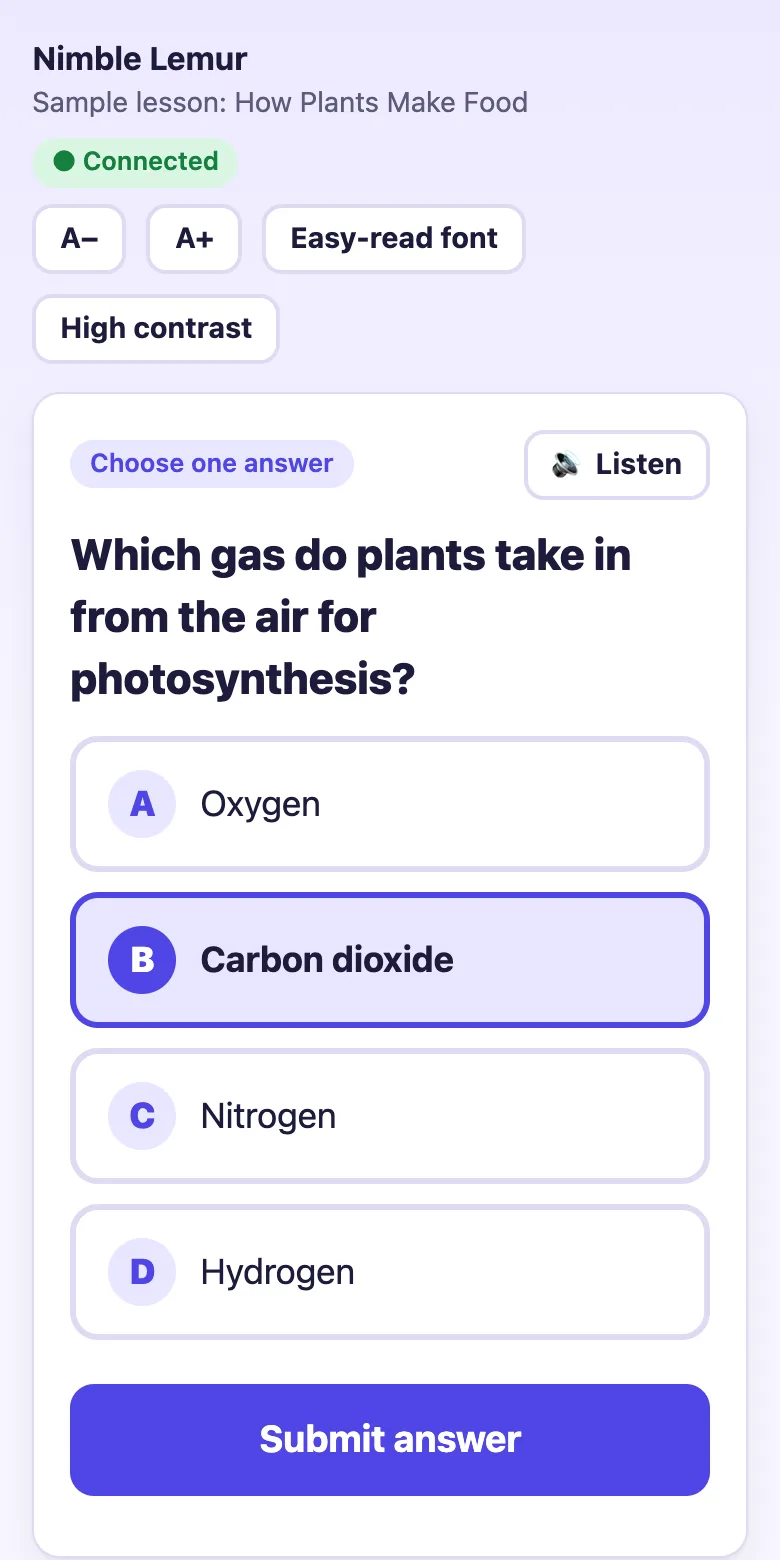
Screenshots from EveryAnswer’s built-in demo class, using a sample lesson and fictional students.
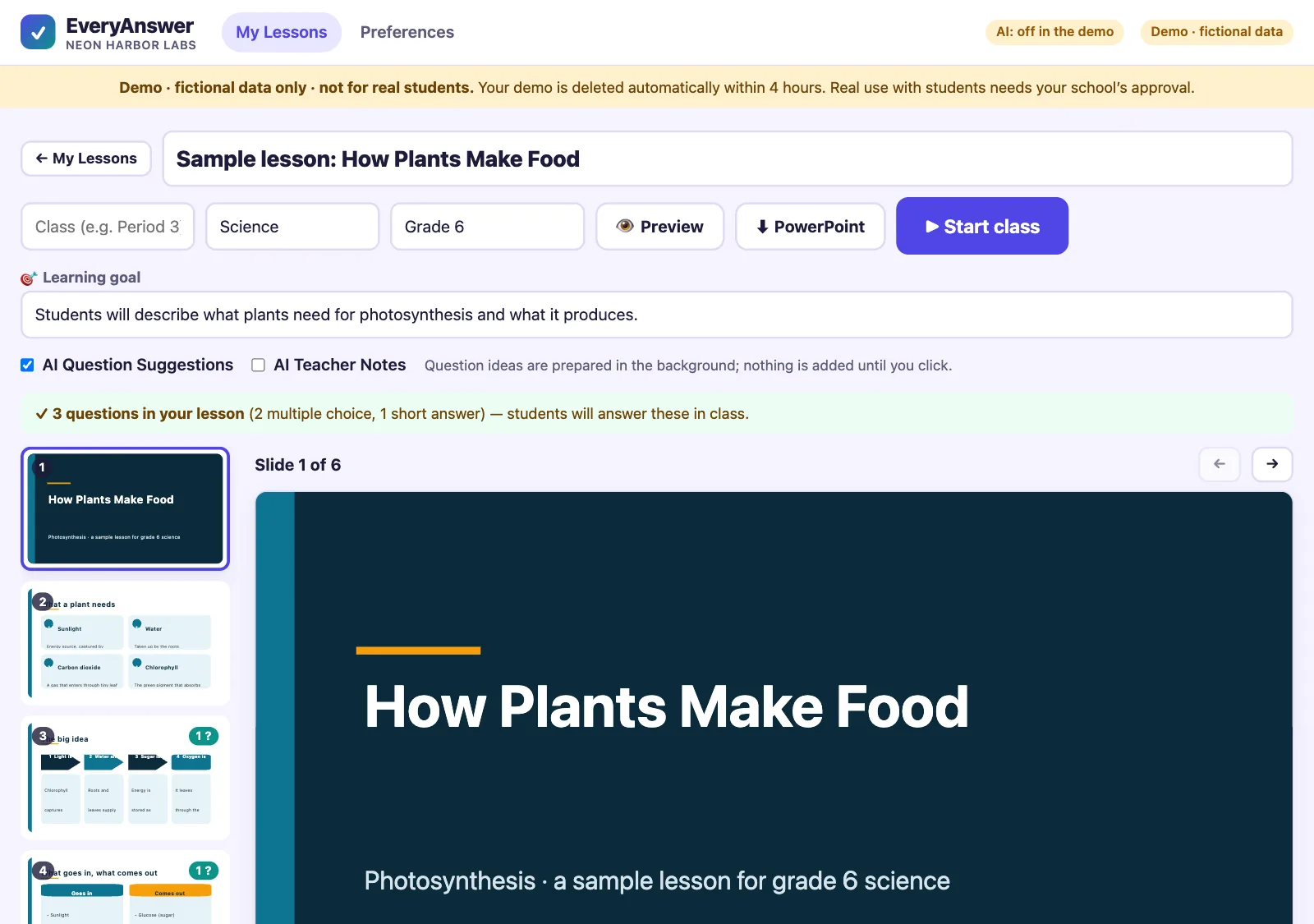
Lesson editor with a prepared question plan 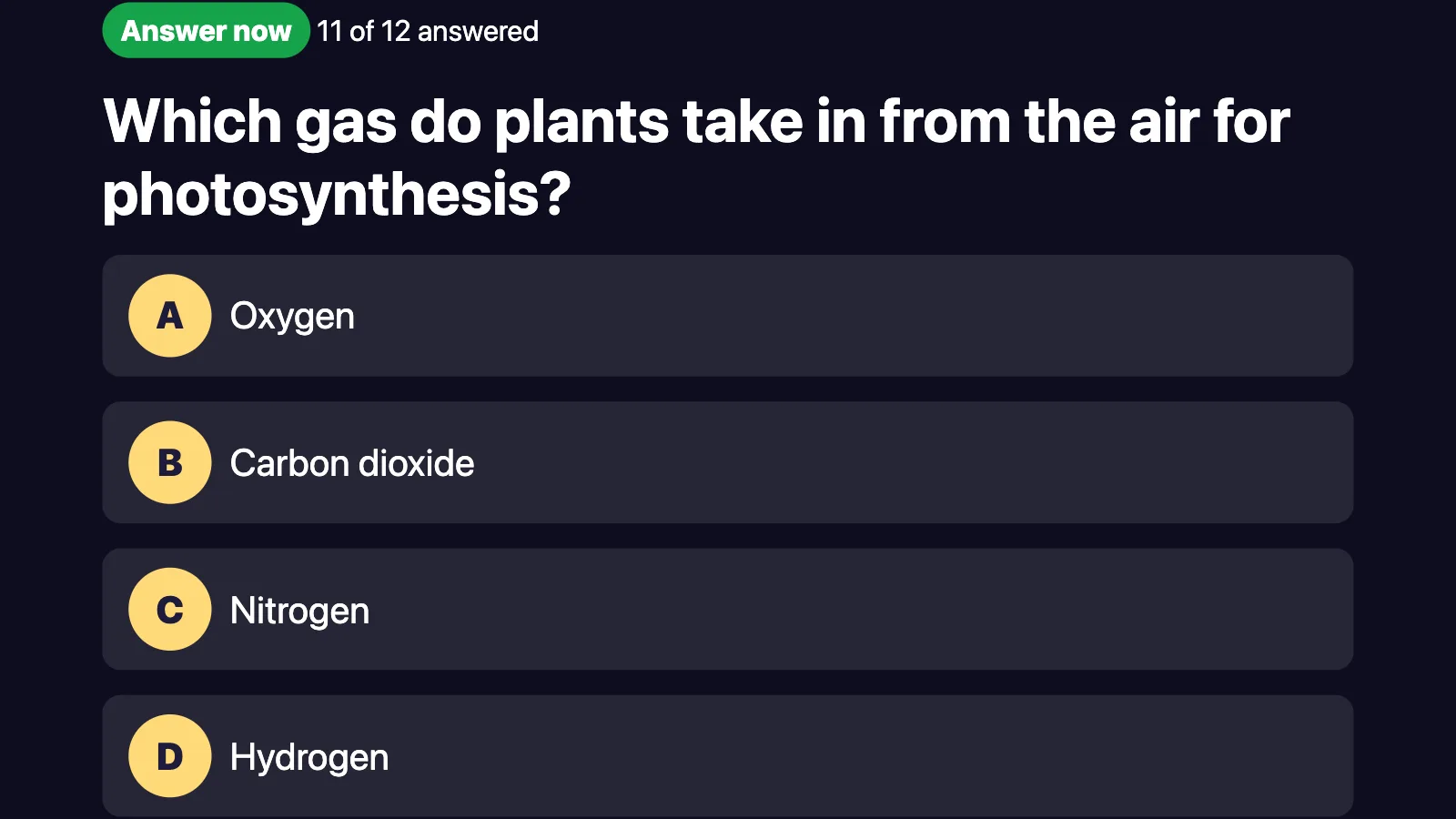
Projector view: clean, with no names or answers Private teacher dashboard with live answers 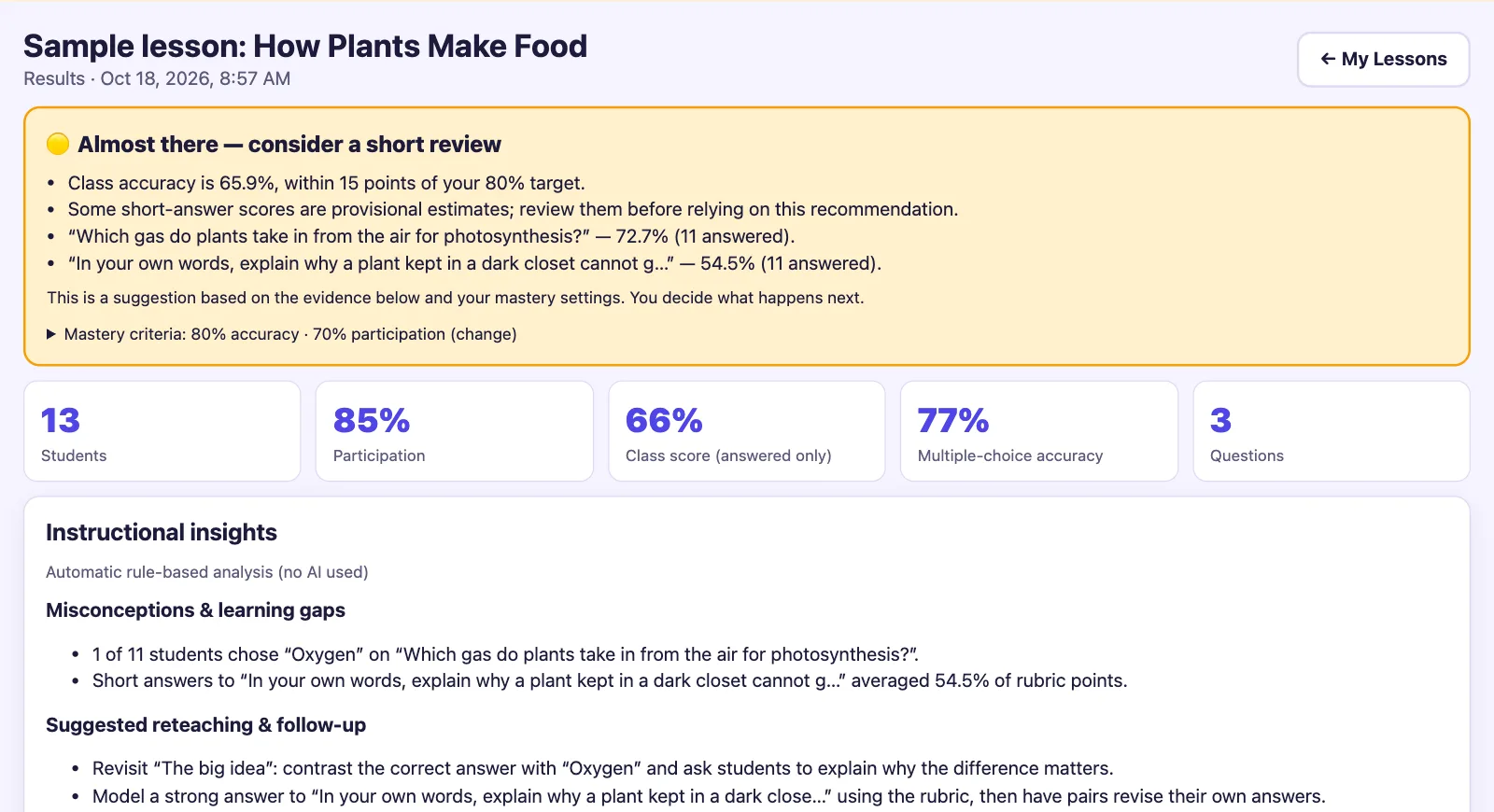
Results with instructional insights and suggested next steps
Privacy by design
Student privacy comes first.
EveryAnswer collects only what a lesson and your report need, and gives the results back to you.
Temporary student records
Student answers live only as long as you need them. After you confirm your export, they are deleted. Unexported classes are deleted automatically after 48 hours without activity.
Your spreadsheet, your copy
Results leave EveryAnswer as a spreadsheet you own. The export is checked before anything is deleted, so you never lose a class by accident.
Nicknames and no student accounts
Students never create accounts or give an email address. Choose typed first names, assigned nicknames or anonymous numbers for each class, and EveryAnswer remembers your choice.
AI analysis of student answers is off by default. When a teacher turns it on, obvious personal details are masked and answers that look personal are held back. This check helps but is not perfect.
EveryAnswer is in a classroom pilot. It has not been through a formal privacy certification or district review, and temporary storage and nicknames do not replace a school’s privacy requirements. Please use fictional students until your school has approved it.
Details
At a glance
- Status
- Classroom pilot
- Made for
- Teachers of all subjects and grade levels
- Works on
- Any modern web browser, with no student accounts
- Questions?
- Get in touch